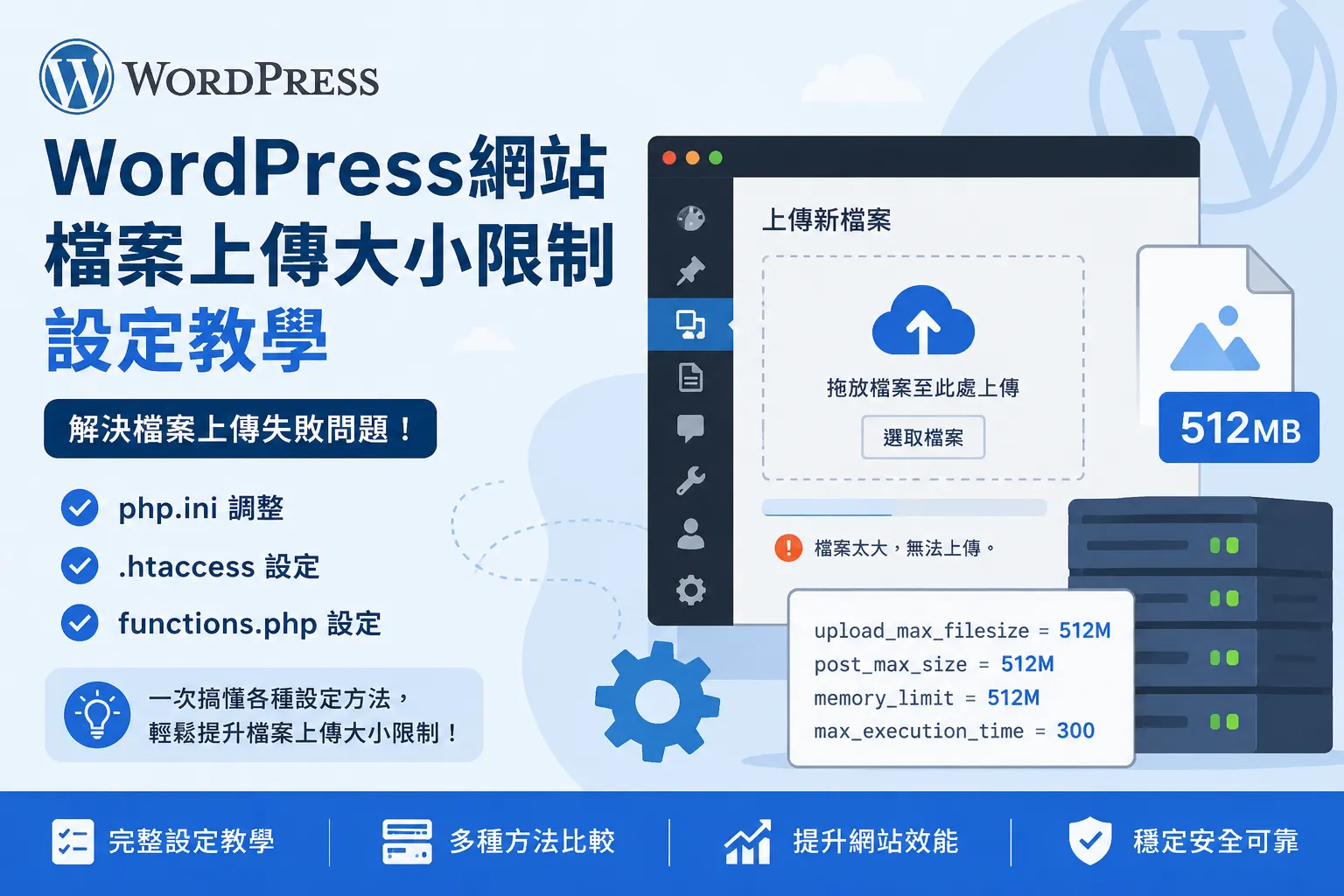

這個檔案已超過這個網站的網頁伺服器的檔案上傳大小限制。
上傳檔案發生錯誤訊息
出現這個錯誤,是因為檔案大小超過了網站中介層(如 Cloudflare 或 Nginx)或網頁程式(如 WordPress)所允許的上傳限制。
Cloudflare 設定
Cloudflare 設定(限制通常為 100MB 或 200MB),如果使用 Cloudflare 代理(Proxy),免費版和專業版對單次 HTTP POST 上傳請求的大小有嚴格限制(免費版通常為 100MB)。
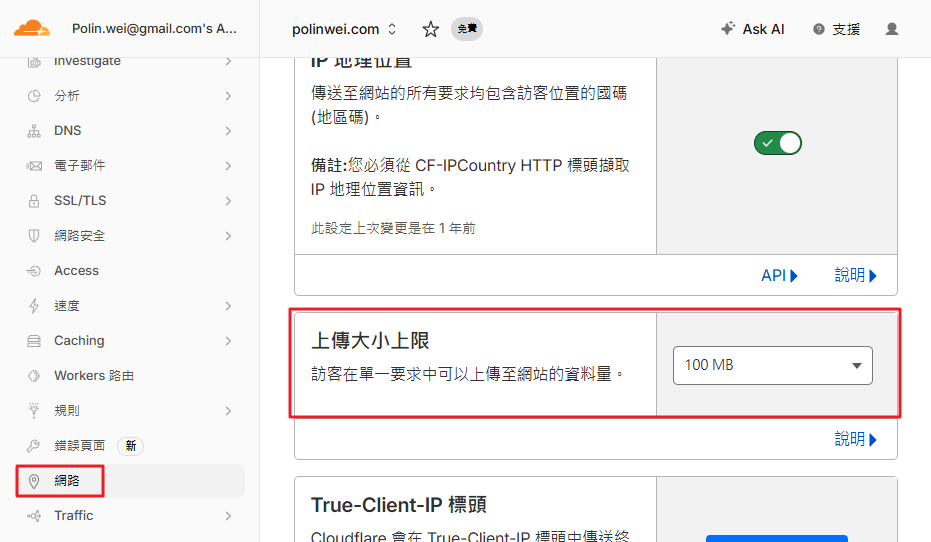
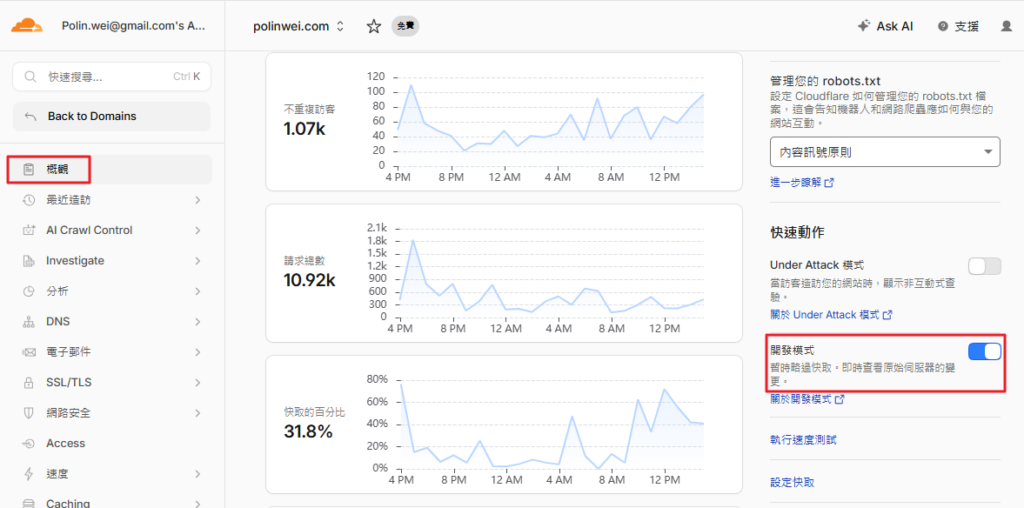
解法:登入 Cloudflare 後台,進入 Network 分頁,找到並確認 Maximum Upload Size 的數值是否足夠;如果檔案極大,可考慮暫時關閉代理(將 DNS 解析改為「僅限 DNS」/ DNS only),或是啟用 開發模式 再直接上傳。
Nginx 設定
Nginx 設定(預設限制為 1MB),如果繞過了 Cloudflare,Nginx 預設的上傳限制通常只有 1MB,超過會直接噴出 413 錯誤。
解法:在 Nginx 的設定檔(nginx.conf)中,找到 http、server 或 location 區塊,加入或修改以下參數:client_max_body_size 500m; (將大小改為您需求的值,例如 500MB)
http {
	  # Sets the maximum allowed size of the client request body.
    # Use 'M' for Megabytes, 'G' for Gigabytes.
    client_max_body_size 13M;

    //other lines...
}或是
server {
	# 使用 https 協定
	listen       443 ssl;
	charset utf-8;
	root         html/poinwei;

	# This specific folder allows larger files than the global setting
	client_max_body_size 512M;
	client_body_buffer_size 512M;
}Edit .htaccess (Apache servers)
php_value upload_max_filesize 512M
php_value post_max_size 512M
php_value memory_limit 256M
php_value max_execution_time 300
php_value max_input_time 300Edit .user.ini (when .htaccess does not work)
Edit .user.ini (LiteSpeed, Nginx, or when .htaccess does not work),Create or edit a .user.ini file in your WordPress root directory:
upload_max_filesize = 512M
post_max_size = 512M
memory_limit = 256M
max_execution_time = 300
max_input_time = 300PHP / 後端程式設定(適用於 WordPress 等網站)
若網站基於 PHP 運行(例如 WordPress),即使前後端中介設定已調高,PHP 本身也會有預設上限(通常是 2MB 至 128MB)。
解法:修改 php.ini 檔案,調整以下兩個數值:
upload_max_filesize = 500M
post_max_size = 500M
max_execution_time = 300WordPress 網站設定
在 wp-config.php 中加入下列程式碼
/* Add any custom values between this line and the "stop editing" line. */

@ini_set( 'upload_max_filesize', '512M' );
@ini_set( 'post_max_size', '512M' );
@ini_set( 'memory_limit', '256M' );
@ini_set( 'max_execution_time', '300' );
@ini_set( 'max_input_time', '300' );

/* That's all, stop editing! Happy publishing. */Hosting control panel
Many hosting providers let you change PHP settings through their control panel:
- cPanel: Software > Select PHP Version > Options
- Plesk: PHP Settings for your domain
- SiteGround: Site Tools > Devs > PHP Manager
- Hostinger: Advanced > PHP Configuration
WordPress 網站搬家
WordPress 網站搬家?可以使用 All In One WP Migration 外掛,All-in-One Migration 是老字號的網站搬家外掛。前往 WordPress 外掛 > 安裝外掛,搜尋 All-in-One WP Migration 然後安裝+啟用。
匯出網站
它的介面流程設計的很簡單,你只需一鍵下載和一鍵還原,就可完成網站搬家。
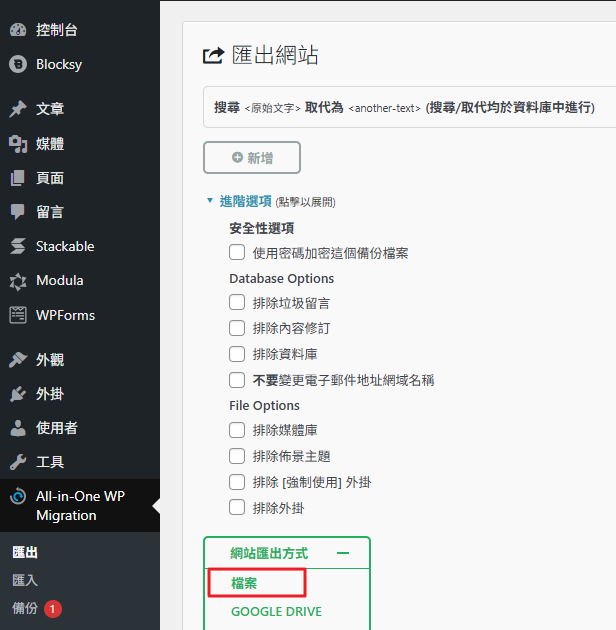
- 在「 搜尋 < 文字 > 取代為 < 替代文字 > (搜尋 / 取代均於資料庫中進行)」這一空白列表,分別在上面填入舊網址,下面填入想搬入的新網址。
- 進階選項的選擇是檔案包裡是否有想要移除的內容,這部分都不要勾選,以免檔案不完整造成搬家失誤。
- 最後,選擇匯出格式為「 檔案 」(其他格式需付費)。
匯入網站
All-in-One WP Migration 免費版本只能上傳小於 512 MB 的檔案包,如檔案小於限制容量,就可以直接上傳。
但若是舊網站的檔案包容量超過限制,那可能就需購買進階版本來擴大上傳容量。更多 進階版本購買 。
備註:如果檔案大小限制像圖片一樣沒有顯示 512 MB ,就是主機設置的問題,需要到虛擬主機後台修改相關設定!可以參考上面的設定說明
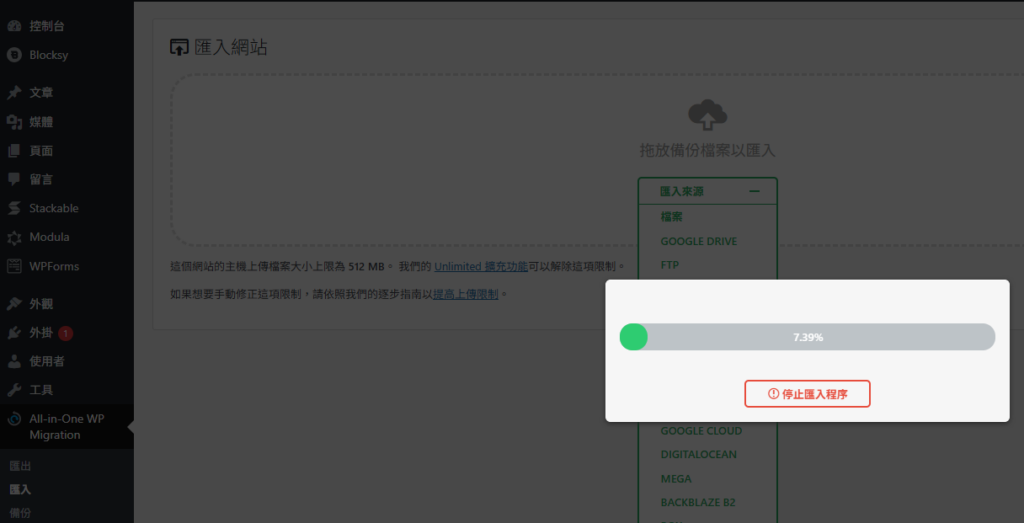
解決檔案限制問題,我們接著耐心等待檔案包上傳。
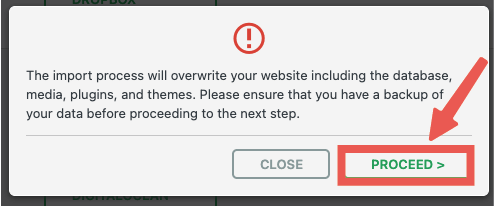
上傳完成後,會跳出通知視窗,詢問你是否覆蓋新網站的檔案,點選「 PROCEED 」繼續。

完成所有步驟後,到前台檢查,發現新網站已經被替換成舊網站的頁面,就表示網站搬家成功啦!