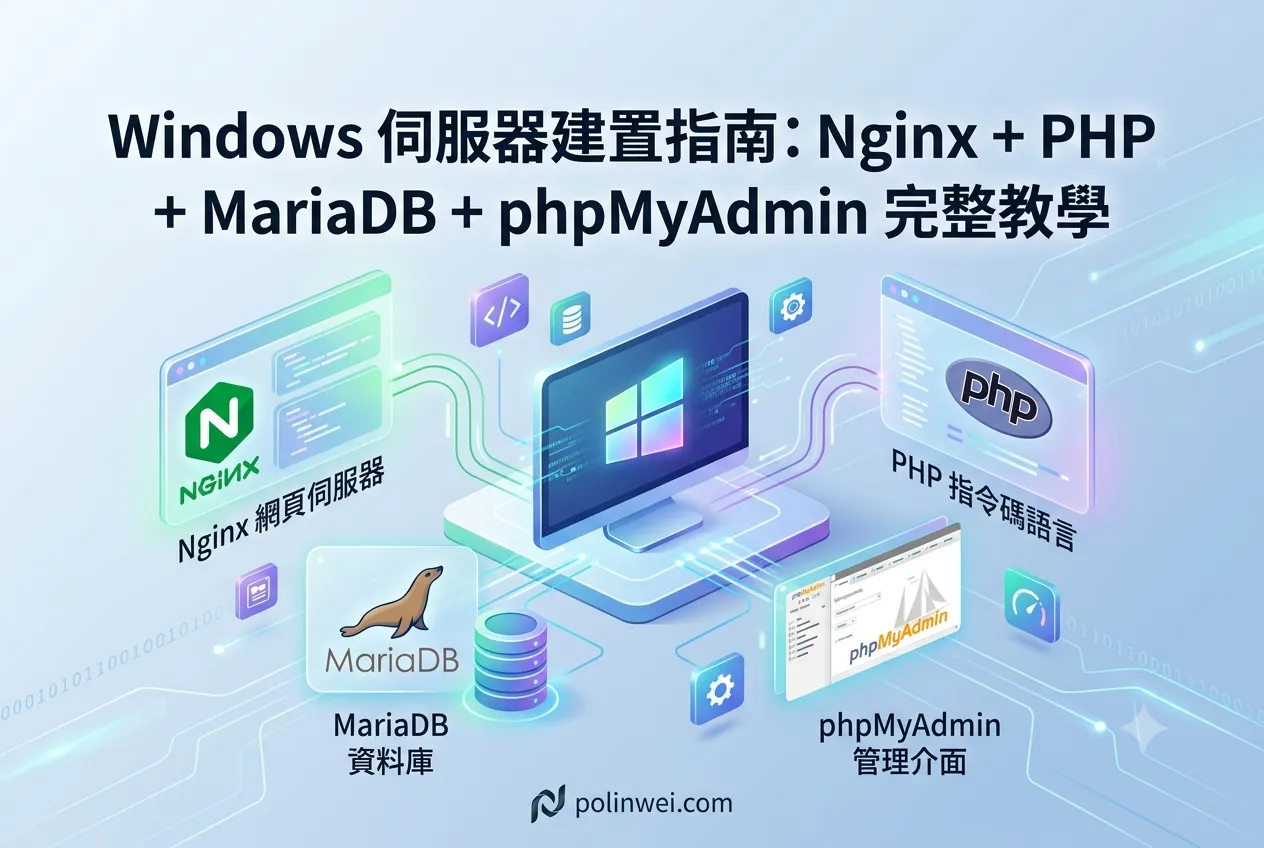

在 Windows 作業系統中安裝 PHP 開發環境,最簡單的方法就是使用集成的 WAMP 安裝工具,這樣可以一次性完成環境配置。儘管這些工具提供了便利性,但同時也有很多缺點,例如:
- 容易導致使用者對 Apache、PHP 和 MySQL 之間的關聯性理解不足,從而錯過了學習許多重要知識的機會。
- 不容易單獨更新某個軟體的版本,每個軟體的版本更新都受到安裝工具的限制。
安裝 Nginx
點擊下方連結進入官網,並點選 Stable version 中的 nginx/Windows-1.26.3 進行下載。
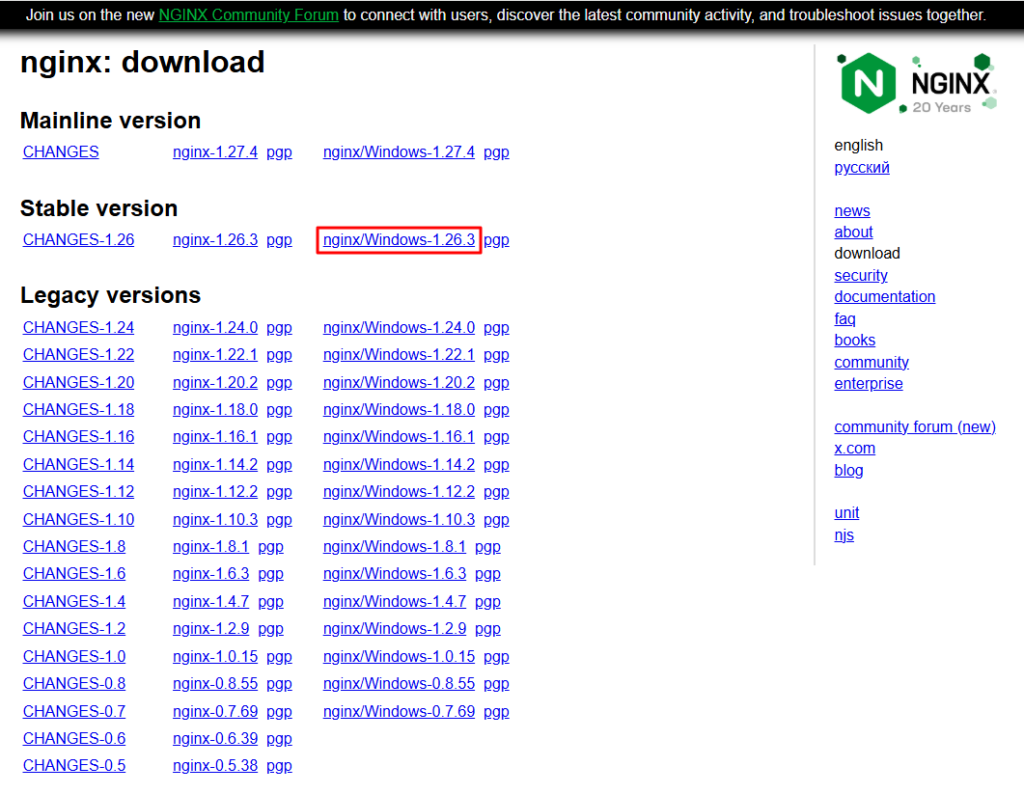
將下載完成的檔案解壓縮,並放至到 C:\Web\nginx 目錄。
修改 nginx.conf
#user  nobody;
worker_processes  1;

error_log  logs/error.log;
#error_log  logs/error.log  notice;
#error_log  logs/error.log  info;

#pid        logs/nginx.pid;


events {
    worker_connections  1024;
}

http {
    include       mime.types;
    default_type  application/octet-stream;

    sendfile        on;
    keepalive_timeout  65;
    gzip  on;

    server {
        listen       80;
        server_name  localhost;
		    charset utf-8;

        location / {
            root   html;
            index  index.php index.html index.htm;
        }

        # redirect server error pages to the static page /50x.html
        #
        error_page   500 502 503 504  /50x.html;
        location = /50x.html {
            root   html;
        }

        # pass the PHP scripts to FastCGI server listening on 127.0.0.1:9000
        #
        location ~ \.php$ {
            root           html;
            fastcgi_pass   127.0.0.1:9000;
            fastcgi_index  index.php;
            fastcgi_param  SCRIPT_FILENAME  /scripts$fastcgi_script_name;
			      include 	     fastcgi.conf;
            include        fastcgi_params;
        }
    }

}
# 字號開頭的為註解,沒有任何作用。
若是有虛擬網站,需要增加下列的設定,以Laravel的網站為例如下。
# another virtual host using mix of IP-, name-, and port-based configuration
#
# HTTP server: http://twingo.polinwei.com
server {
	# listen 設定這個 server 監聽的 port
	listen       80;
	server_name  twingo.polinwei.com;

	# 可將 root 視為一個入口,指到 Laravel 專案資料夾內的 public 資料夾
	root   html/twingo/public;
	index  index.php index.html index.htm;
	access_log  logs/twingo.access.log;
	error_log   logs/twingo.error.log;

	# 將 HTTP 資源永久導向至 HTTPS
	return 301 https://$server_name$request_uri;
}

# HTTPS server: https://twingo.polinwei.com
# For Laravel
server {
	# 使用 https 協定
	listen       443 ssl;

	root         html/twingo/public;
	access_log   logs/twingo.access.log;
	error_log    logs/twingo.error.log;
	index        index.php index.html index.htm;
	server_name  twingo.polinwei.com;

	ssl_certificate      cert\server.pem;
	ssl_certificate_key  cert\server.key;

	ssl_session_cache    shared:SSL:1m;
	ssl_session_timeout  5m;

	ssl_ciphers  HIGH:!aNULL:!MD5;
	ssl_prefer_server_ciphers  on;

	location / {
		# This is cool because no php is touched for static content.
		# include the "?$args" part so non-default permalinks doesn't break when using query string
		#轉址符合SEO 隱藏副檔名
		try_files $uri $uri/ /index.php?$args;
	}
	location = /favicon.ico {
		log_not_found off;
		access_log off;
	}
	location ~* \.(js|css|png|jpg|jpeg|gif|ico)$ {
		expires max;
		log_not_found off;
	}
	location = /robots.txt {
		allow all;
		log_not_found off;
		access_log off;
	}

	# pass the PHP scripts to FastCGI server listening on 127.0.0.1:9000
	#
	location ~ \.php$ {
		fastcgi_pass   127.0.0.1:9000;
		fastcgi_index  index.php;
		fastcgi_param  SCRIPT_FILENAME  /scripts$fastcgi_script_name;
		include 	   fastcgi.conf;
		include        fastcgi_params;
	}

}啟動 nginx 的指令
// 啟動
C:\Web\nginx\nginx.exe -p C:\Web\nginx

// 其他指令
// 檢查設定檔有無錯誤
nginx.exe -t

// 停止
nginx.exe -s stop安裝 Microsoft Visual C++
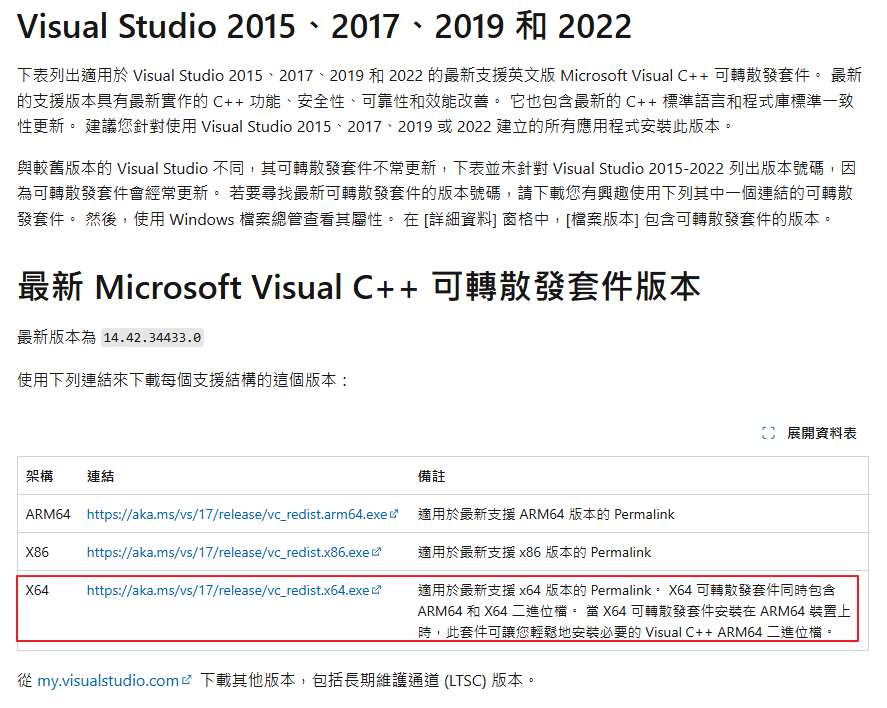
新版本的 PHP 是使用 VS15 或 VS16 建構的,安裝之前需要先安裝 Microsoft Visual C++ 可轉散發套件。 點擊下方連結進入官網下載安裝檔,並進行安裝,基本上安裝過程也沒有什麼選項,直接安裝應不會有什麼問題。
安裝 PHP
接下來就可以安裝 PHP 了,點擊下方連結進入官網,並點選 VS16 x64 Thread Safe 中的 Zip 進行下載。
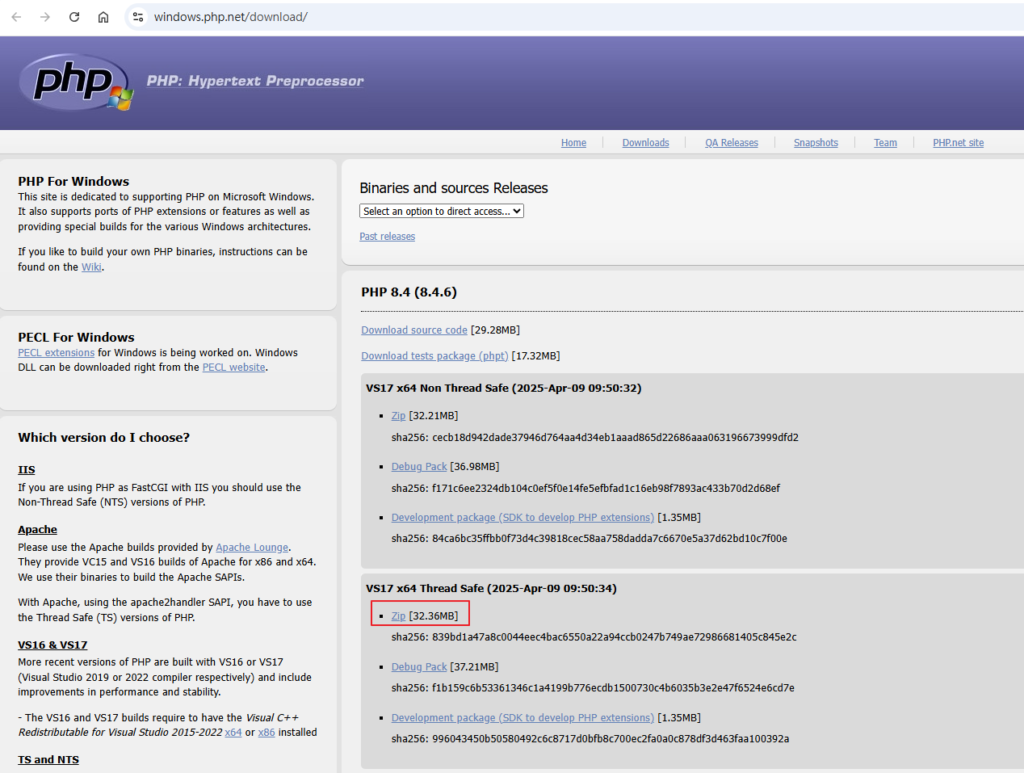
將下載完成的檔案解壓縮,並放至到 C:\Web\php 目錄。將 php.ini-development,更名為 php.ini,這個檔案就是 PHP 的設定檔,可以直接用記事本開啟編輯。
設定檔先修改 display_errors 及 date.timezone 兩個參數,其他設定都先使用預設值即可
; 預設應該就是 On,確認一下即可。
display_errors = On

; 記得把前面的分號(;)移除,分號表示註解。
date.timezone = Asia/Taipei打開命令提示字元 (CMD),並使用以下指令啟動 PHP FastCGI。
// 啟動
C:\Web\php\php-cgi.exe -b 127.0.0.1:9000撰寫一個簡單的 PHP 程式測試。開啟記事本,輸入以下程式碼,並使用檔名 index.php 存檔,最後將檔案放到 C:\Web\nginx\html 目錄底下。
<?php
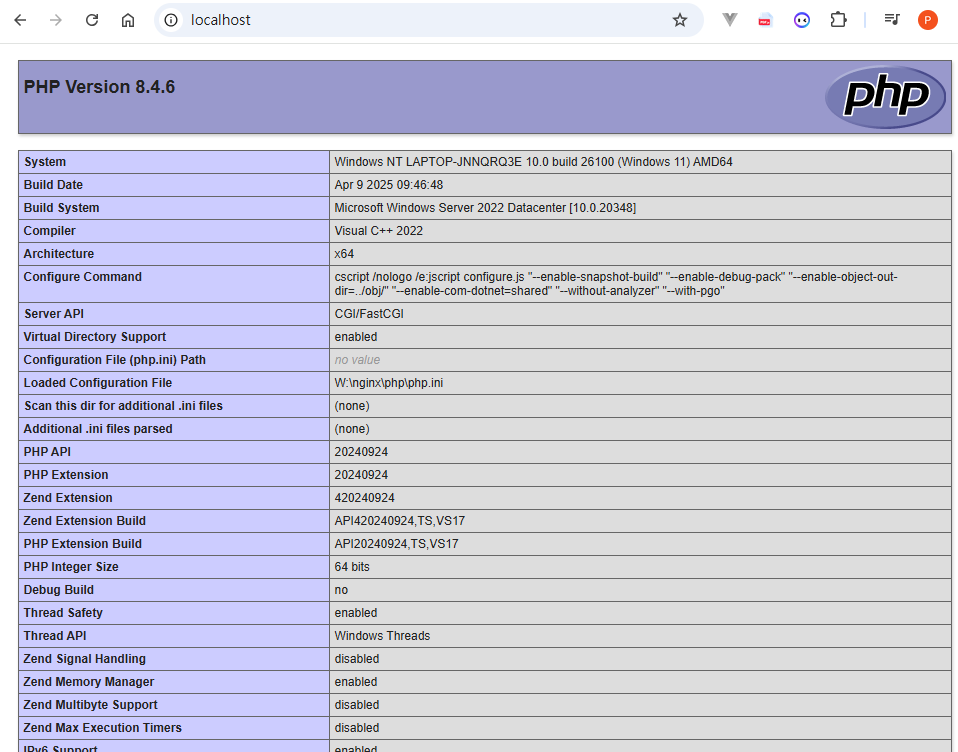
phpinfo();打開瀏覽器,網址輸入 http://localhost/,如果設定無誤並正確啟動的話,就能看到以下畫面,即表示 PHP 及 Nginx 都安裝完成,並且設定無誤。
phpMyAdmin 下載
到網址: https://www.phpmyadmin.net/downloads/ 下載
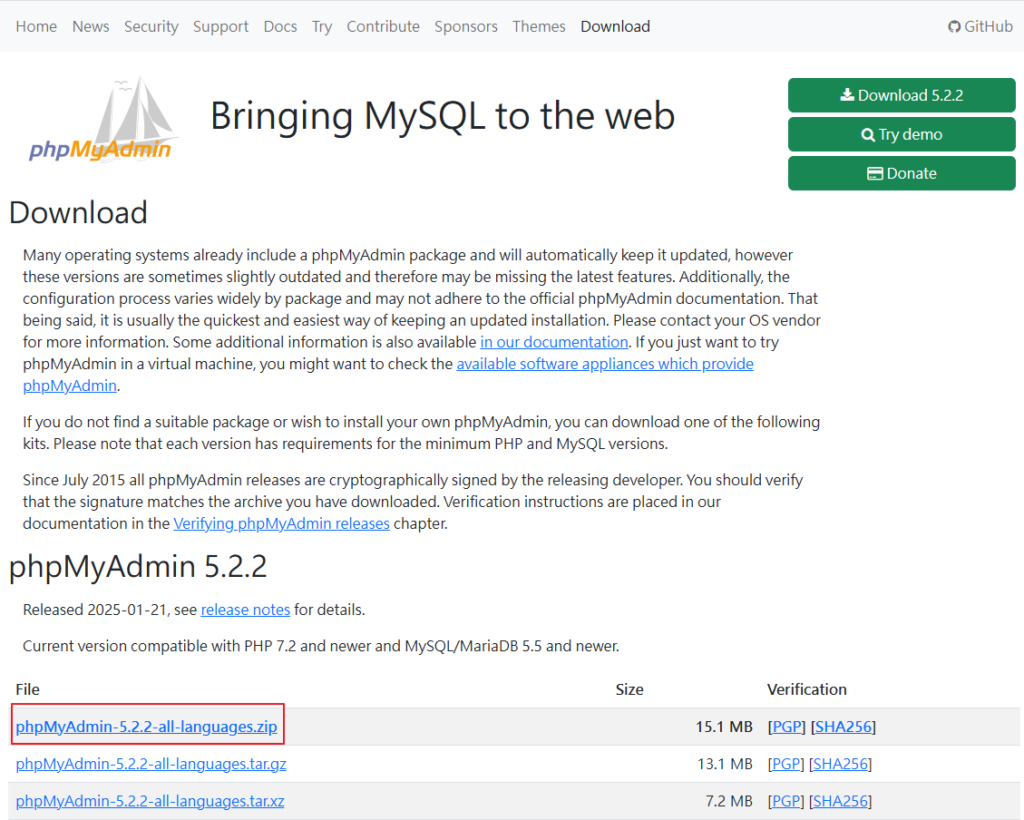
將檔案解壓放到 C:\Web\nginx\html 目錄底下即可。
MariaDB 下載
到網址: https://mariadb.org/download/
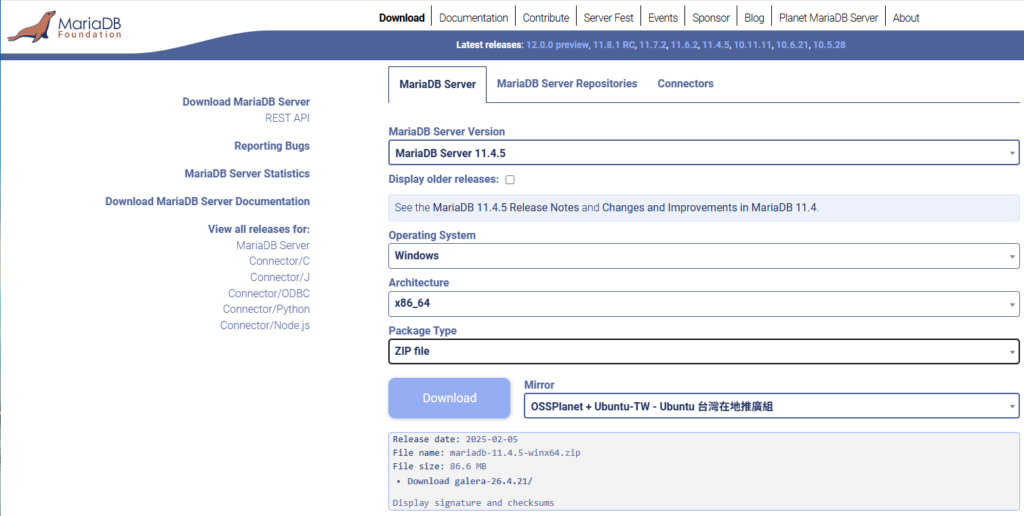
將檔案解壓放到 C:\Web\nginx\mysql 目錄底下,修改my.ini 後即可執行 mysqld 啟動。
安裝 xxfpmW
可以到 GitHub: https://github.com/jying000/xxfpmW 下載
因為在windows系統中的php-cgi.exe (即工作管理員中的 CGI / FastCGI)很容易掛掉,為了在Windows系統 中防止php-cgi 崩潰,有網有就自行撰寫了這個套件,它可以後臺運行,並將運行和錯誤日誌保存在txt檔中。去掉linux相關代碼,解決關機時會彈出錯誤視窗提示的問題。
註: 因為windows裡沒有fpm (FastCGI Process Manager ),所以使用 xxfpmW 來解決。
常用目錄及檔案
Nginx
- [Nginx 目錄]\conf\nginx.confNginx 設定檔。
- [Nginx 目錄]\html\access.log 存取紀錄 Log 檔,如果有使用者連入您的網站,這邊都會有紀錄。
- [Nginx 目錄]\logs\error.log 錯誤紀錄 Log 檔,網頁伺服器產生的錯誤訊息。
- [Nginx 目錄]\html\預設的網頁存放路徑,未來您寫的 HTML、CSS、JavaScript、PHP… 都放在這裡。
- [Nginx 目錄]\ngxin.exe Nginx 執行檔。
PHP
- [PHP 目錄]\php.iniPHP 設定檔。
- [PHP 目錄]\php.exePHP 執行檔。
- [PHP 目錄]\php-cgi.exePHP CGI 執行檔。
- [PHP 目錄]\ext\PHP 擴展庫 (extension) 存放目錄。
MariaDB
- [MariaDB 目錄]\data\資料庫實體檔案儲存路徑。
- [MariaDB 目錄]\data\my.ini 資料庫設定檔。
問題解決:
發生 cURL error 60: SSL certificate prblm: unable to get local issuer certificate
下載 cacert.pem
Download and extract for cacert.pem  (a clean file format/data)

https://curl.haxx.se/docs/caextract.html

Put it in :

C:\xampp\php\extras\ssl\cacert.pem

Add this line to your php.ini

curl.cainfo = "C:\xampp\php\extras\ssl\cacert.pem"

restart your webserver/Apache參考: