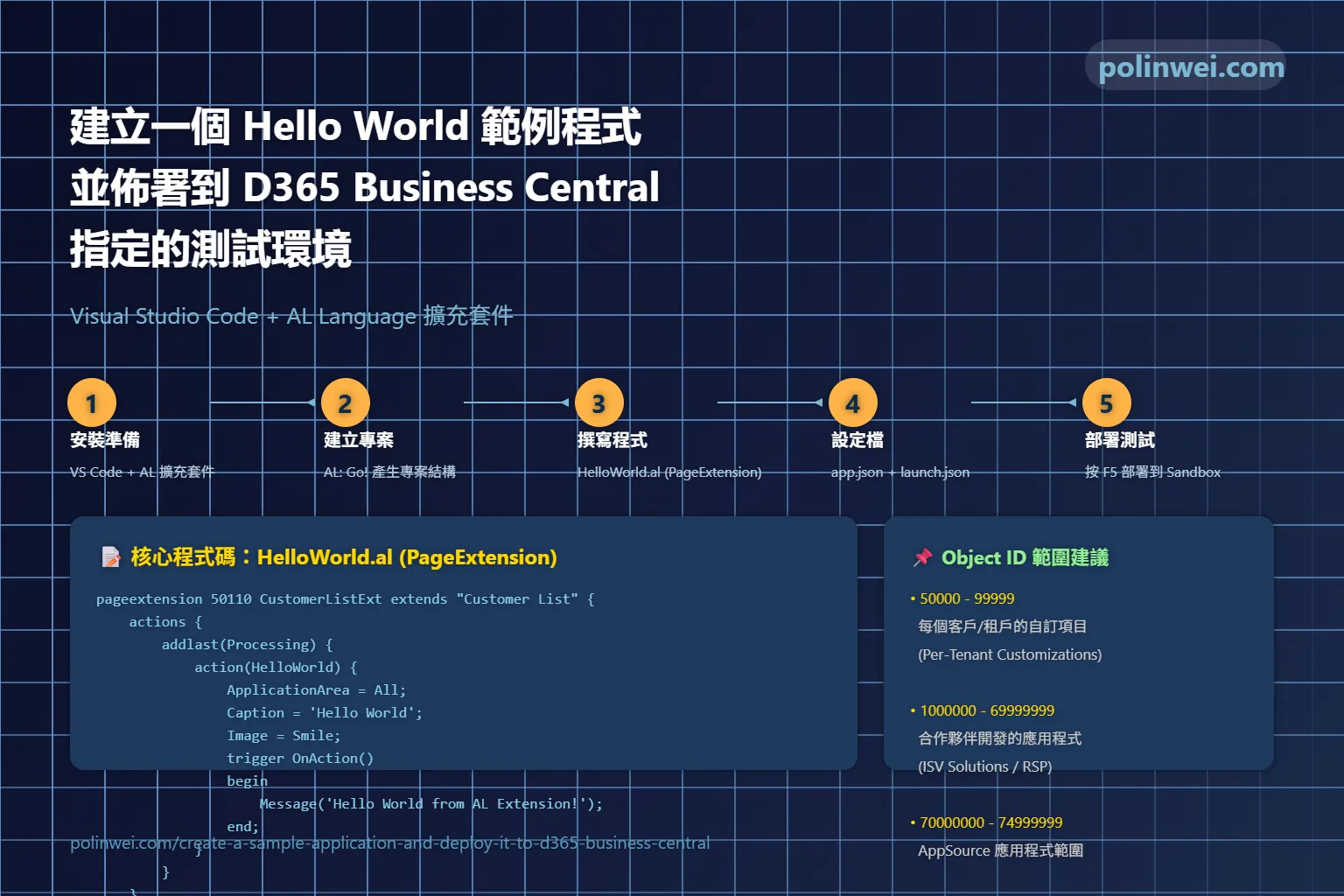

整個開發與測試的完整步驟,包含:
- 安裝 Visual Studio Code
- Visual Studio Code 安裝延伸套件 AL Language 擴充套件
- 建立 Hello World 的 AL 專案
- 撰寫 AL 程式碼
- 設定
launch.json指定要佈署的測試環境 - 在 VS Code 部署到 Microsoft Dynamics 365 Business Central 測試環境
安裝與準備
- 安裝 Visual Studio Code。
- 在 VS Code 安裝 AL Language 擴充套件(由 Microsoft 提供)。
- 取得你的 Business Central Sandbox (測試環境) 的 URL 與登入帳號。
- 通常 URL 格式是:
https://businesscentral.dynamics.com/<tenant>/<environment>/建立 AL 專案
在命令列或 VS Code 命令面板 (Ctrl+Shift+P) 輸入:
AL: Go!- 選擇一個資料夾來建立專案。
- 這會自動產生一個專案結構,包含
app.json、launch.json。
撰寫 Hello World 程式
在專案資料夾下建立新檔案 HelloWorld.al
pageextension 50110 CustomerListExt extends "Customer List"
{
    actions
    {
        addlast(Processing)
        {
            action(HelloWorld)
            {
                ApplicationArea = All;
                Caption = 'Hello World';
                Image = Smile;

                trigger OnAction()
                begin
                    Message('Hello World from AL Extension!');
                end;
            }
        }
    }
}說明:
- 這支程式的 Id 編號為 50110 ,要在 app.json 範圍內,且不能在D365 Business Central上有重覆註冊
- 這個程式會在 Customer List 頁面的 動作 下拉頁面 中加一個
Hello World按鈕。 - 點擊按鈕時會跳出訊息
Hello World from AL Extension!。
設定 launch.json
打開 .vscode/launch.json,確認內容大致如下(修改成你的環境資訊):
{
    "configurations": [
        {
            "name": "Microsoft cloud sandbox",
            "request": "launch",
            "type": "al",
            "environmentType": "Sandbox",
            "environmentName": "Your Environment Name",
            "startupObjectId": 22,
            "startupObjectType": "Page",
            "breakOnError": "All",
            "launchBrowser": true,
            "enableLongRunningSqlStatements": true,
            "enableSqlInformationDebugger": true,
            "tenant": "Your tenant Code"
        }
    ]
}說明:
startupObjectId:22代表 Customer List(系統內建頁面)
設定 app.json
打開根目錄下的 app.json,確認內容大致如下(修改成你的環境資訊):
{
  "id": "9f1d30b1-3f1e-4be7-86e6-6f29091d3120",
  "name": "Hello World",
  "publisher": "Default Publisher",
  "version": "1.0.0.0",
  "brief": "",
  "description": "",
  "privacyStatement": "",
  "EULA": "",
  "help": "",
  "url": "",
  "logo": "",
  "dependencies": [],
  "screenshots": [],
  "platform": "1.0.0.0",
  "application": "26.0.0.0",
  "idRanges": [
    {
      "from": 50100,
      "to": 50149
    }
  ],
  "resourceExposurePolicy": {
    "allowDebugging": true,
    "allowDownloadingSource": true,
    "includeSourceInSymbolFile": true
  },
  "runtime": "15.0",
  "features": [
    "NoImplicitWith"
  ]
}部署到測試環境
在 VS Code 按 F5 或執行 Debug > Start Debugging。
- 系統會先 編譯 AL 專案 → 產生
.app檔 - 然後自動佈署到指定的 Business Central Sandbox
- 瀏覽器會自動開啟 Customer List 頁面
- 你會看到多了一個 Hello World 按鈕
- 點擊後會跳出訊息 🎉
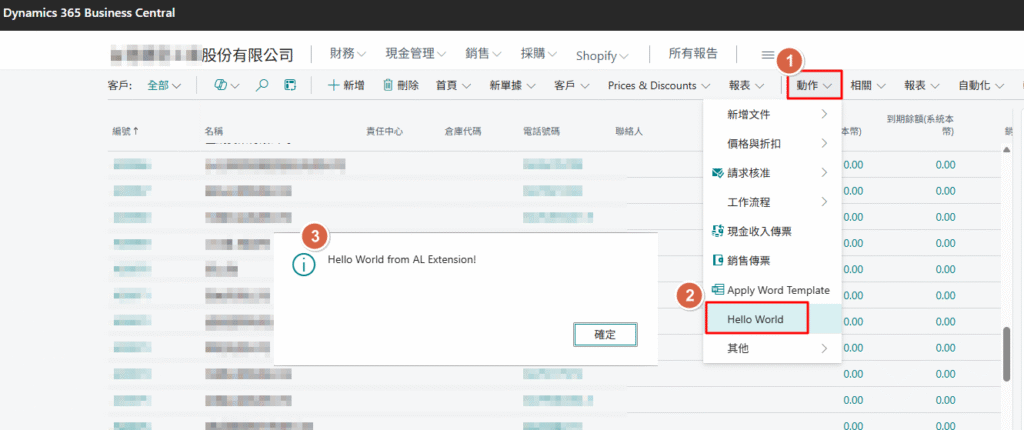
至此,就完成了 第一個 AL Hello World 專案,並且佈署到 Business Central Sandbox 環境。
Object ID ranges – Business Central
Business Central 的客製程式建議物件ID 分為兩大類:50,000-99,999 適用於每個客戶/租戶的自訂項目,而 1,000,000-74,999,999 的RSP 或 App Object Range 則用於合作夥伴開發的應用程式,但必須進行授權申請。
針對每個客戶/租戶的自訂(Per-Tenant Customizations)
- 建議範圍:: 50,000-99,999。
- 目的:: 適用於針對特定租戶或客戶進行的個人化自訂和程式開發。
針對合作夥伴開發的應用程式(ISV Solutions/Extensions)
App Object Range (70,000,000-74,999,999) 最初是為了在Microsoft 商業市集中的應用程式設計,但這兩個範圍的擴充功能都可以在Business Central online 和on-premises 環境中實現。
建議範圍: 1,000,000-69,999,999 (RSP Object Range) 或70,000,000-74,999,999 (App Object Range)。
目的: 適用於合作夥伴開發的獨立軟體供應商(ISV) 解決方案或擴充功能。
重要考量:
若要使用這些範圍進行應用程式開發,您需要向Microsoft 申請授權,Microsoft Learn 指出這是專門為開發者準備的。