
基本的 login script 版本
在使用者登入 AD 網域時,自動抓取使用者帳號與組織單位 (OU) 資訊,並依條件掛載對應的網路磁碟機。這種 powershell Script 一般會放在 AD GPO 的 User Logon Script 中執行。
# ------------------------------------------------------------
# AD 登入網路磁碟掛載 Script
# 版本: 1.0
# 作者: [Your Name]
# 說明: 使用者登入網域時,依帳號與 OU 掛載網路磁碟
# ------------------------------------------------------------

# 確保 AD 模組可用
Import-Module ActiveDirectory -ErrorAction SilentlyContinue

# 取得登入者帳號(SamAccountName)
$userName = $env:USERNAME

# 取得登入者網域
$domain = $env:USERDOMAIN

# 從 AD 取得使用者詳細資訊
try {
    $userInfo = Get-ADUser -Identity $userName -Properties DisplayName, MemberOf, DistinguishedName
} catch {
    Write-Host "無法從 AD 取得使用者資訊: $($_.Exception.Message)"
    exit 1
}

# 取得使用者 OU
# DistinguishedName 範例: CN=John Doe,OU=IT,OU=Taipei,DC=example,DC=com
$ouPath = ($userInfo.DistinguishedName -split ',')[1..($userInfo.DistinguishedName.Split(',').Count - 3)] -join ','

# 紀錄使用者資訊到事件檔(方便除錯)
$logFile = "C:\Temp\LoginScript.log"
"[$(Get-Date -Format 'yyyy-MM-dd HH:mm:ss')] 使用者: $($userInfo.DisplayName) ($userName) OU: $ouPath" | Out-File -FilePath $logFile -Append

# 清除現有的網路磁碟(避免重複掛載衝突)
Get-WmiObject Win32_MappedLogicalDisk | Select-Object DeviceID, ProviderName | ForEach-Object {
    net use $_.DeviceID /delete /y
}

# 根據 OU 或 群組 掛載磁碟
switch -Wildcard ($ouPath) {
    '*OU=IT*' {
        net use Z: "\\fileserver\IT" /persistent:no
    }
    '*OU=HR*' {
        net use Z: "\\fileserver\HR" /persistent:no
    }
    '*OU=Finance*' {
        net use Z: "\\fileserver\Finance" /persistent:no
    }
    Default {
        net use Z: "\\fileserver\Public" /persistent:no
    }
}

# 如果要用 AD 群組判斷,也可以:
# if ($userInfo.MemberOf -match 'CN=Finance-Share') {
#     net use Z: "\\fileserver\Finance" /persistent:no
# }

# 紀錄掛載結果
"[$(Get-Date -Format 'yyyy-MM-dd HH:mm:ss')] 網路磁碟掛載完成" | Out-File -FilePath $logFile -Append設計重點
powershell 語法來管理 AD- 抓取使用者與 OU 資訊
- 用
$env:USERNAME取得使用者帳號 - 用
Get-ADUser取得完整資訊 - 從
DistinguishedName解析 OU
- 用
- 依 OU 或群組掛載磁碟
switch -Wildcard判斷 OU- 或用
$userInfo.MemberOf判斷群組
- 防止重複掛載衝突
- 先刪除舊的網路磁碟再掛載
- 除錯方便
- 將執行結果寫入
C:\Temp\LoginScript.log
- 將執行結果寫入
- 在 GPO 中設定
User Configuration → Windows Settings → Scripts (Logon/Logoff) → Logon- 指定
.ps1腳本,並確保允許 PowerShell 執行(Set-ExecutionPolicy RemoteSigned)
企業用的 login script 版本(多群組多磁碟版)
支援 多個 AD 群組 → 多個網路磁碟掛載,並保留 OU 判斷 的能力,讓 IT 可以彈性管理。
# ------------------------------------------------------------
# AD 登入網路磁碟掛載 Script (多群組 & 多 OU 支援)
# 版本: 2.0
# 作者: [Your Name]
# ------------------------------------------------------------

# 載入 AD 模組
Import-Module ActiveDirectory -ErrorAction SilentlyContinue

# 取得登入者帳號與網域
$userName = $env:USERNAME
$domain = $env:USERDOMAIN

# 從 AD 取得使用者資訊
try {
    $userInfo = Get-ADUser -Identity $userName -Properties DisplayName, MemberOf, DistinguishedName
} catch {
    Write-Host "無法從 AD 取得使用者資訊: $($_.Exception.Message)"
    exit 1
}

# 取得使用者 OU
$ouPath = ($userInfo.DistinguishedName -split ',')[1..($userInfo.DistinguishedName.Split(',').Count - 3)] -join ','

# 紀錄登入資訊(方便除錯)
$logFile = "C:\Temp\LoginScript.log"
"[$(Get-Date -Format 'yyyy-MM-dd HH:mm:ss')] 使用者: $($userInfo.DisplayName) ($userName) OU: $ouPath" | Out-File -FilePath $logFile -Append

# 刪除現有網路磁碟(避免衝突)
Get-WmiObject Win32_MappedLogicalDisk | Select-Object DeviceID, ProviderName | ForEach-Object {
    net use $_.DeviceID /delete /y
}

# 設定群組對應的磁碟掛載表
$groupDriveMap = @{
    "CN=IT-Share"      = @{ Drive = "I"; Path = "\\fileserver\IT" }
    "CN=HR-Share"      = @{ Drive = "H"; Path = "\\fileserver\HR" }
    "CN=Finance-Share" = @{ Drive = "F"; Path = "\\fileserver\Finance" }
    "CN=Sales-Share"   = @{ Drive = "S"; Path = "\\fileserver\Sales" }
}

# 設定 OU 對應的磁碟掛載表(可選)
$ouDriveMap = @{
    "*OU=Taipei*" = @{ Drive = "T"; Path = "\\fileserver\Taipei" }
    "*OU=Kaohsiung*" = @{ Drive = "K"; Path = "\\fileserver\Kaohsiung" }
}

# 根據 AD 群組掛載磁碟
foreach ($group in $groupDriveMap.Keys) {
    if ($userInfo.MemberOf -match [regex]::Escape($group)) {
        $driveLetter = $groupDriveMap[$group].Drive
        $path = $groupDriveMap[$group].Path
        net use "$driveLetter:" $path /persistent:no
        "[$(Get-Date -Format 'yyyy-MM-dd HH:mm:ss')] 已掛載群組磁碟: $driveLetter: → $path" | Out-File -FilePath $logFile -Append
    }
}

# 根據 OU 掛載磁碟
foreach ($ouPattern in $ouDriveMap.Keys) {
    if ($ouPath -like $ouPattern) {
        $driveLetter = $ouDriveMap[$ouPattern].Drive
        $path = $ouDriveMap[$ouPattern].Path
        net use "$driveLetter:" $path /persistent:no
        "[$(Get-Date -Format 'yyyy-MM-dd HH:mm:ss')] 已掛載 OU 磁碟: $driveLetter: → $path" | Out-File -FilePath $logFile -Append
    }
}

# 完成訊息
"[$(Get-Date -Format 'yyyy-MM-dd HH:mm:ss')] 網路磁碟掛載完成" | Out-File -FilePath $logFile -Append功能說明
- 多群組多磁碟掛載
$groupDriveMap可設定多個群組與對應的磁碟代號與路徑。- 只要使用者屬於該群組,就自動掛載。
- OU 判斷掛載
$ouDriveMap依 OU 名稱條件掛載磁碟(支援萬用字元*)。
- 避免衝突
- 登入前先刪除舊有網路磁碟連線。
- 除錯紀錄
- 所有掛載結果與使用者資訊寫到
C:\Temp\LoginScript.log。
- 所有掛載結果與使用者資訊寫到
- 部署方式
- 放在網域共用資料夾(例如
\\domain\netlogon\Login.ps1)。 - 在 GPO → User Configuration → Windows Settings → Scripts → Logon 中加入此
.ps1。 - 確保用戶端允許 PowerShell 腳本執行:
- 放在網域共用資料夾(例如
Set-ExecutionPolicy RemoteSignedPowerShell Login Script – 零維護企業版
# ------------------------------------------------------------
# AD 登入網路磁碟掛載 Script (零維護版)
# 版本: 3.0
# 作者: [Your Name]
# 說明: 自動抓取使用者 AD 群組,依掛載表自動掛載磁碟
# ------------------------------------------------------------

# 載入 AD 模組
Import-Module ActiveDirectory -ErrorAction SilentlyContinue

# 取得登入者帳號與網域
$userName = $env:USERNAME
$domain   = $env:USERDOMAIN

# 從 AD 取得使用者資訊(含群組、OU)
try {
    $userInfo = Get-ADUser -Identity $userName -Properties DisplayName, MemberOf, DistinguishedName
} catch {
    Write-Host "無法從 AD 取得使用者資訊: $($_.Exception.Message)"
    exit 1
}

# 取得使用者 OU
$ouPath = ($userInfo.DistinguishedName -split ',')[1..($userInfo.DistinguishedName.Split(',').Count - 3)] -join ','

# 取得所有群組名稱(純名稱,不含 CN=)
$userGroups = @()
foreach ($groupDN in $userInfo.MemberOf) {
    $userGroups += ($groupDN -split ',')[0] -replace '^CN=', ''
}

# 記錄登入資訊(方便除錯)
$logFile = "C:\Temp\LoginScript.log"
"[$(Get-Date -Format 'yyyy-MM-dd HH:mm:ss')] 使用者: $($userInfo.DisplayName) ($userName) OU: $ouPath 群組: $($userGroups -join ', ')" | Out-File -FilePath $logFile -Append

# 刪除現有網路磁碟(避免衝突)
Get-WmiObject Win32_MappedLogicalDisk | Select-Object DeviceID, ProviderName | ForEach-Object {
    net use $_.DeviceID /delete /y
}

# 掛載表(只要維護這個表,不用改 Script)
# Key = 群組名稱 或 OU 條件
# Type = Group / OU
# Drive = 磁碟代號
# Path = 網路路徑
$driveMap = @(
    @{ Type = "Group"; Name = "IT-Share";      Drive = "I"; Path = "\\fileserver\IT" }
    @{ Type = "Group"; Name = "HR-Share";      Drive = "H"; Path = "\\fileserver\HR" }
    @{ Type = "Group"; Name = "Finance-Share"; Drive = "F"; Path = "\\fileserver\Finance" }
    @{ Type = "Group"; Name = "Sales-Share";   Drive = "S"; Path = "\\fileserver\Sales" }
    @{ Type = "OU";    Name = "*OU=Taipei*";   Drive = "T"; Path = "\\fileserver\Taipei" }
    @{ Type = "OU";    Name = "*OU=Kaohsiung*";Drive = "K"; Path = "\\fileserver\Kaohsiung" }
)

# 比對掛載表
foreach ($map in $driveMap) {
    if ($map.Type -eq "Group" -and ($userGroups -contains $map.Name)) {
        net use "$($map.Drive):" $map.Path /persistent:no
        "[$(Get-Date -Format 'yyyy-MM-dd HH:mm:ss')] 已掛載群組磁碟: $($map.Drive): → $($map.Path)" | Out-File -FilePath $logFile -Append
    }
    elseif ($map.Type -eq "OU" -and ($ouPath -like $map.Name)) {
        net use "$($map.Drive):" $map.Path /persistent:no
        "[$(Get-Date -Format 'yyyy-MM-dd HH:mm:ss')] 已掛載 OU 磁碟: $($map.Drive): → $($map.Path)" | Out-File -FilePath $logFile -Append
    }
}

# 完成訊息
"[$(Get-Date -Format 'yyyy-MM-dd HH:mm:ss')] 網路磁碟掛載完成" | Out-File -FilePath $logFile -Append版本特色
- 零維護:以
$driveMap作為唯一掛載設定表,新增磁碟只要加一行即可 - 自動群組比對:不需要寫死 CN 路徑,直接用群組顯示名稱比對
- 支援 OU 判斷:可以針對不同地區/部門的 OU 掛載不同磁碟
- 安全除錯:掛載紀錄與使用者資訊寫入
C:\Temp\LoginScript.log - 企業部署友好:可放
\\domain\netlogon\Login.ps1並用 GPO 設定 Logon Script
維護方式
- 要新增一個群組磁碟,IT 只要:
- 在 AD 建一個群組(例如
R&D-Share) - 在
$driveMap加一行
- 在 AD 建一個群組(例如
@{ Type = "Group"; Name = "R&D-Share"; Drive = "R"; Path = "\\fileserver\R&D" }3. 把該群組成員加入需要存取的人
4. 完成,不需改 GPO、不需改腳本邏輯
建立呼叫批次檔
在同一個 \\domain\netlogon 目錄建立 Login.bat:
@echo off
powershell.exe -ExecutionPolicy Bypass -File "\\domain\netlogon\Login.ps1"在 GPO Logon Script 中,選擇 Login.bat。
問題解決:
無法在 Windows 11 中安裝 RSAT(Remote Server Administrator Tools)?
Get-ADUser : The term ‘Get-ADUser’ is not recognized
安装 RSAT 组件
執行 get-ADUser 時出現錯誤
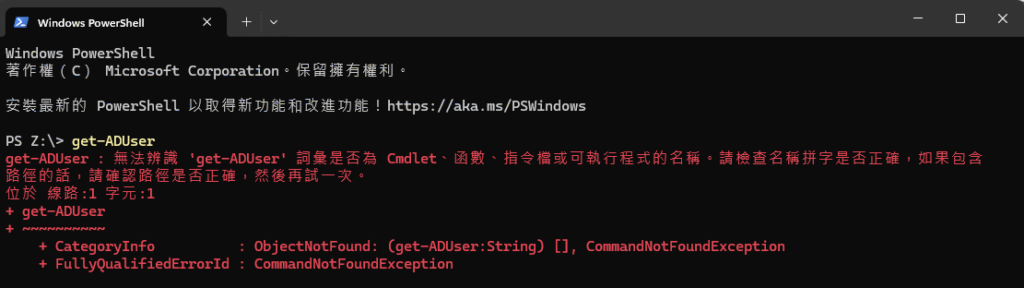
PS Z:\> get-ADUser
get-ADUser : 無法辨識 'get-ADUser' 詞彙是否為 Cmdlet、函數、指令檔或可執行程式的名稱。請檢查名稱拼字是否正確,如果包含
路徑的話,請確認路徑是否正確,然後再試一次。
位於 線路:1 字元:1
+ get-ADUser
+ ~~~~~~~~~~
    + CategoryInfo          : ObjectNotFound: (get-ADUser:String) [], CommandNotFoundException
+ FullyQualifiedErrorId : CommandNotFoundException要通过 PowerShell 命令安装 RSAT 工具,请按以下步骤操作:
- 使用
Windows + R快捷键打开「运行」对话框,输入powershell,然后按Ctrl + Shift + Enter以管理员权限打开 PowerShell。
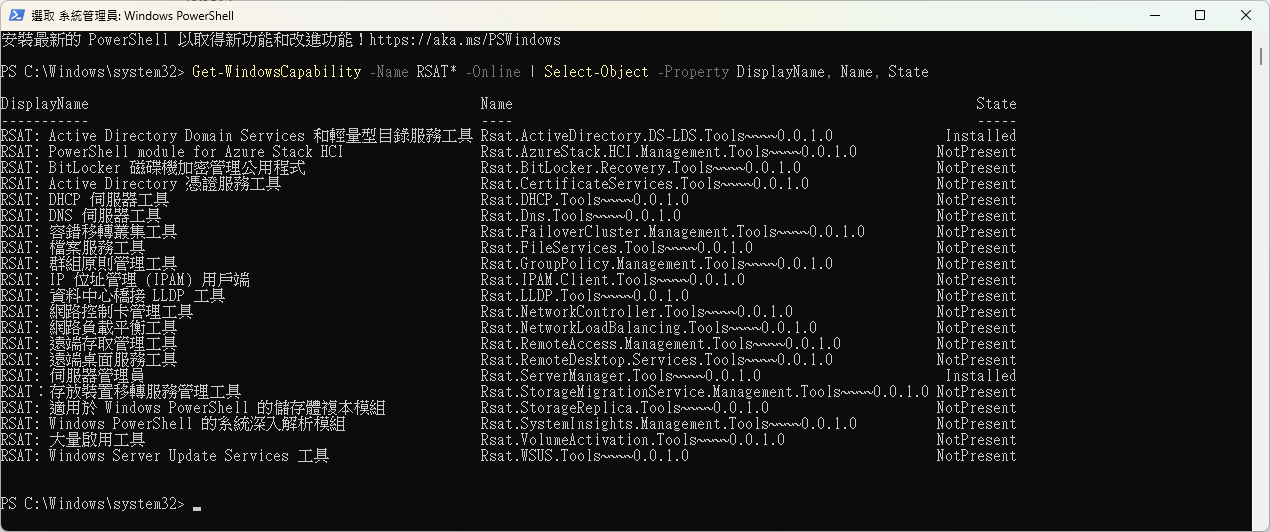
2. 執行以下命令查看「已安装」和「可用」的 RSAT 组件:
Get-WindowsCapability -Name RSAT* -Online | Select-Object -Property DisplayName, Name, State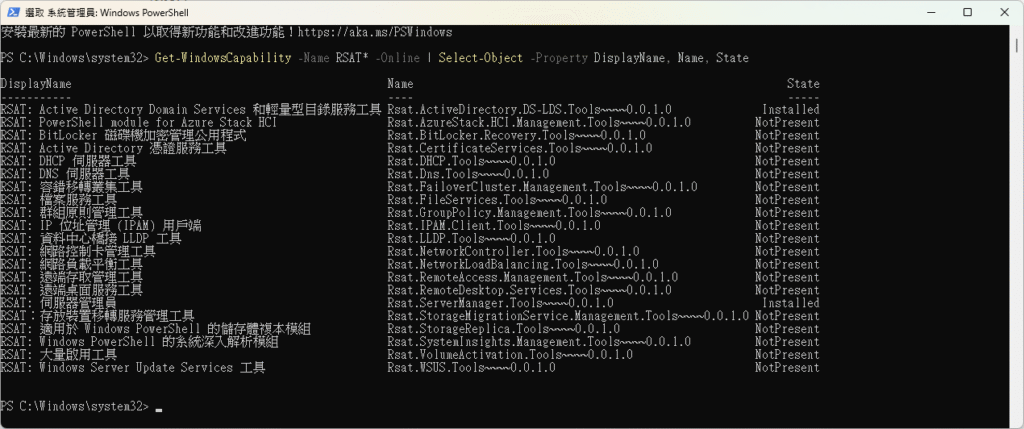
3. 執行以下命令安装指定的 RSAT 组件:
# 下載語法
Get-WindowsCapability -Name "[RSAT-Tool-Name]" -Online | Add-WindowsCapability –Online
# 例如下行指令
Get-WindowsCapability -Name RSAT.ActiveDirectory* -Online | Add-WindowsCapability -Online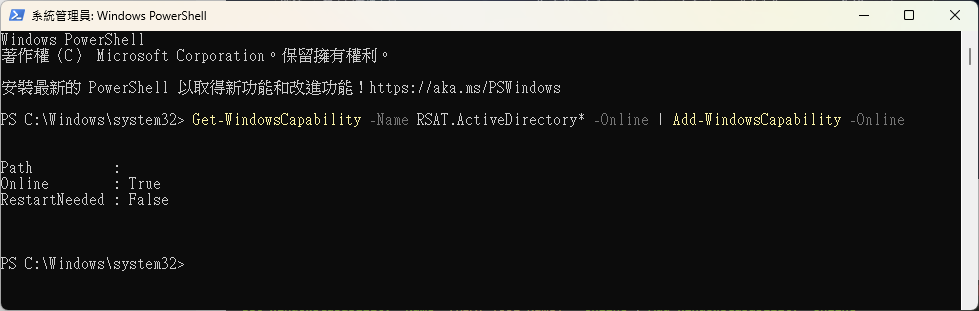
可使用以下命令一次性安装所有 RSAT 组件,省得以后麻烦:
Get-WindowsCapability -Name RSAT* -Online | Add-WindowsCapability -Online缷載 RSAT組件
執行以下命令列出「已安装」的 RSAT 组件:
Get-WindowsCapability -Name RSAT* -Online | Where-Object {$_.State -eq "Installed"} | Select-Object -Property DisplayName, Name, State執行以下命令卸载指定的 RSAT 组件:
# 語法: 记得将RSAT-Tool-Name,替换为组件的实际Name名称。
Remove-WindowsCapability -Name "[RSAT-Tool-Name]" -Online

# 一次性缷載所有已经安装的 RSAT 组件
Get-WindowsCapability -Name RSAT* -Online | Where-Object {$_.State -eq "Installed"} | ForEach-Object {Remove-WindowsCapability -Online -Name $_.Name}