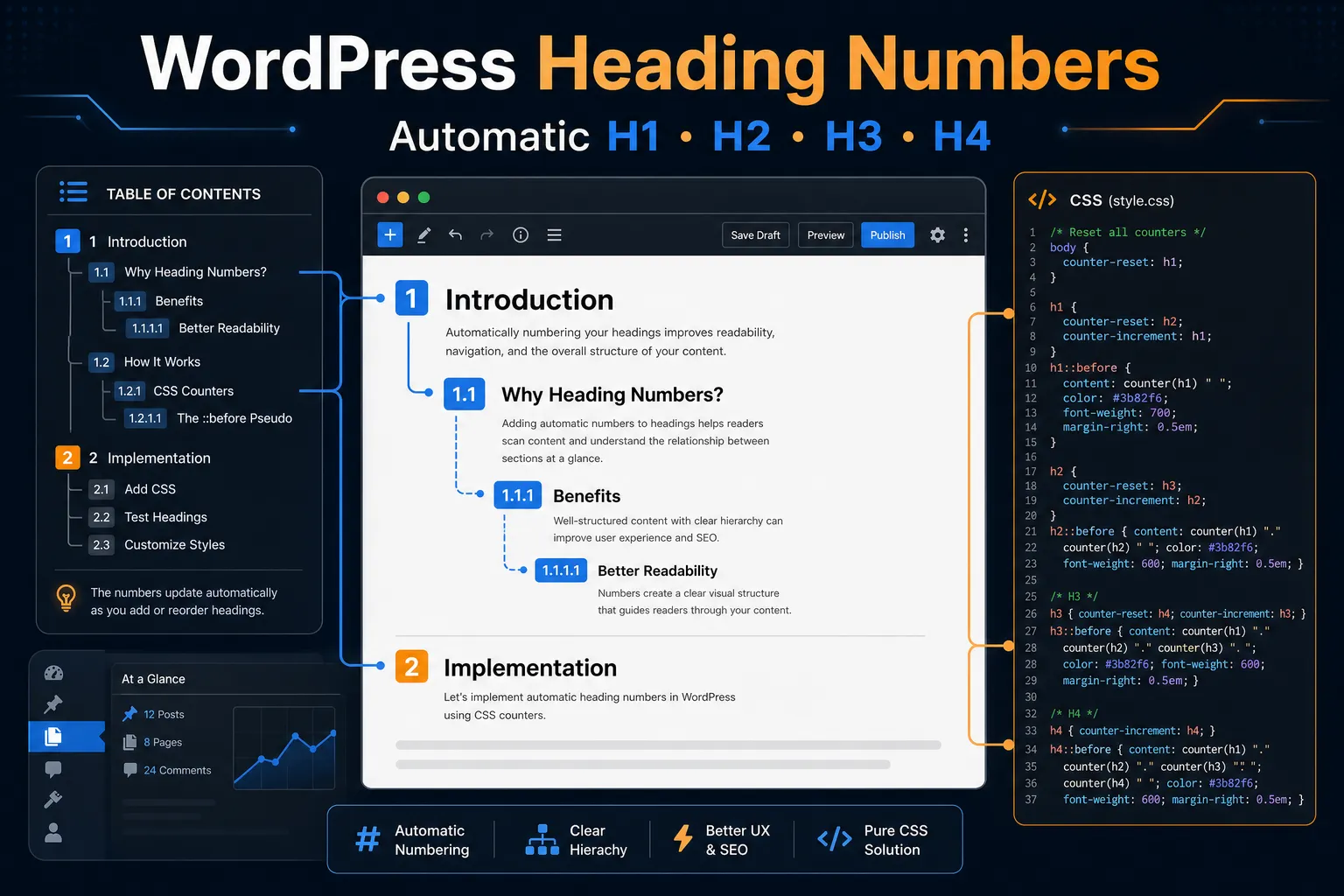

在 WordPress 中使用 Blocksy 主題,要讓文章內的 H1、H2、H3 標題自動加上數字編號(例如:1., 1.1, 1.1.1),最推薦的方法是使用純 CSS 程式碼。這種方法最乾淨,不會影響 SEO,也不需要安裝額外的外掛。以下是具體步驟與程式碼:
設定步驟
- 進入 WordPress 控制台。
- 點選 外觀 > 自訂(Customize)。
- 找到 額外的 CSS(Additional CSS)區塊。
- 將下方的 CSS 程式碼貼入欄位中。
- 點選 發佈 即可生效。
CSS 程式碼
根據文章結構需求,只針對文章內文(.entry-content)自動編號,這個方案最安全,只會作用於文章內文的標題,不會影響到首頁、側邊欄或頁尾的標題。
CSS
/* 初始化內文的計數器 */
.entry-content {
    counter-reset: h2-counter;
}

/* H2 編號設定 */
.entry-content h2 {
    counter-reset: h3-counter;
}
.entry-content h2::before {
    counter-increment: h2-counter;
    content: counter(h2-counter) ". ";
}

/* H3 編號設定 */
.entry-content h3 {
    counter-reset: h4-counter;
}
.entry-content h3::before {
    counter-increment: h3-counter;
    content: counter(h2-counter) "." counter(h3-counter) " ";
}

/* H4 編號設定 */
.entry-content h4 {
    counter-increment: h4-counter;
}
.entry-content h4::before {
    content: counter(h2-counter) "." counter(h3-counter) "." counter(h4-counter) " ";
}(註:一般文章的 H1 是文章標題,內文通常從 H2 開始。此程式碼以 H2 為第一層編號。)
CSS 加入前綴圖示與底色
「左側深藍粗直線」與「淡藍色整個標題底色」外,H2、H3、H4 的標題文字顏色(包含數字編號與您自己輸入的標題中文字)也全部調整成與它們各自的深藍色系一致。這樣做可以讓整體色調高度統一,視覺效果非常乾淨、專業。
CSS
/** ============================
 只針對文章內文(.entry-content)自動編號
============================= * /
/* 初始化內文的計數器 */
.entry-content {
    counter-reset: h2-counter;
}

/* ===== H2 設定:深藍粗線 + 淡藍底色 + 強制深藍粗體字 ===== */
.entry-content h2 {
    counter-reset: h3-counter;
    background-color: #e1e8ed; /* 淡藍色底色 */
    border-left: 6px solid #1a365d; /* 深藍色左側粗直線 */
    color: #1a365d !important; /* 強制標題文字為深藍色 */
    font-family: -apple-system, BlinkMacSystemFont, "Segoe UI", Roboto, "Helvetica Neue", Arial, "Microsoft JhengHei", sans-serif; /* 現代感字型 */
    font-weight: 700; /* 標題文字加粗 */
    padding: 12px 18px;
    margin-top: 35px;
    margin-bottom: 18px;
    border-radius: 0 4px 4px 0;
}
.entry-content h2::before {
    counter-increment: h2-counter;
    content: counter(h2-counter) ". ";
    color: #1a365d !important; /* 強制編號顏色與文字一致 */
    font-weight: 700; /* 編號加粗 */
    margin-right: 8px;
}

/* ===== H3 設定:科技藍中線 + 淡藍底色 + 強制科技藍粗體字 ===== */
.entry-content h3 {
    counter-reset: h4-counter;
    background-color: #e1e8ed; /* 稍淡藍色底色 */
    border-left: 4px solid #2b6cb0; /* 科技藍左側直線 */
    color: #2b6cb0 !important; /* 強制標題文字為科技藍色 */
    font-family: -apple-system, BlinkMacSystemFont, "Segoe UI", Roboto, "Helvetica Neue", Arial, "Microsoft JhengHei", sans-serif;
    font-weight: 700;
    padding: 10px 15px;
    margin-top: 28px;
    margin-bottom: 14px;
    border-radius: 0 4px 4px 0;
}
.entry-content h3::before {
    counter-increment: h3-counter;
    content: counter(h2-counter) "." counter(h3-counter) " ";
    color: #2b6cb0 !important;
    font-weight: 700;
    margin-right: 6px;
}

/* ===== H4 設定:灰藍細線 + 淡藍底色 + 強制灰藍粗體字 ===== */
.entry-content h4 {
    background-color: #e1e8ed; /* 淡藍色底色 */
    border-left: 3px solid #4a5568; /* 灰藍色左側直線 */
    color: #4a5568 !important; /* 強制標題文字為灰藍色 */
    font-family: -apple-system, BlinkMacSystemFont, "Segoe UI", Roboto, "Helvetica Neue", Arial, "Microsoft JhengHei", sans-serif;
    font-weight: 700;
    padding: 8px 12px;
    margin-top: 22px;
    margin-bottom: 10px;
    border-radius: 0 4px 4px 0;
}
.entry-content h4::before {
    counter-increment: h4-counter;
    content: counter(h2-counter) "." counter(h3-counter) "." counter(h4-counter) " ";
    color: #4a5568 !important;
    font-weight: 700;
    margin-right: 6px;
}調整後的亮點
- 一體化視覺:原本標題文字可能會吃原本主題預設的黑色,現在文字顏色完全和左邊的線條、編號綁定成同一個色系,畫面非常有整體感。
- 高對比易讀性:淡藍底色搭配深色的標題字,符合無障礙閱讀的色彩對比度,長時間閱讀技術教學也不易疲勞。
字型設定小秘密
程式碼中的 font-family 包含了常見的作業系統內建網頁優質字型:
- Mac/iOS:會優先調用精緻的系統黑體(San Francisco)。
- Windows:英文會套用乾淨的 Segoe UI,中文則套用微軟正黑體。
這樣設定最不佔資源,且能確保中英文在任何裝置上看起來都是完美對齊、字體粗細一致。
自動編號只在「文章(Post)」生效
要讓這自動編號只在「文章(Post)」生效,而在「靜態頁面(Page)」自動失效,最完美的做法是利用 WordPress 預設在 <body> 標籤上自動生成的「網頁類型 Class 名稱」。
在 WordPress 中:
- 文章頁面的
<body>會自帶.single-post這個 Class。 - 靜態頁面的
<body>則是自帶.page這個 Class。
我們只需要將 CSS 選擇器加上 .single-post 限制,就能確保編號功能只在文章內啟動,頁面完全不受影響。更棒的是,這樣寫還能保留您在頁面(Page)中精心設計的標題底色與線條外觀,只有數字編號會隱藏!
CSS
/* ==========================================================================
   1. 初始化計數器:限制只在「文章頁面 (.single-post)」內啟動
   ========================================================================== */
.single-post .entry-content {
    counter-reset: h2-counter;
}

/* ==========================================================================
   2. H2 設定:深藍粗線 + 淡藍底色 + 強制深藍粗體字
   ========================================================================== */
.entry-content h2 {
    background-color: #f0f4f8; /* 淡藍色底色 */
    border-left: 6px solid #1a365d; /* 深藍色左側粗直線 */
    color: #1a365d !important; /* 強制標題文字為深藍色 */
    font-family: -apple-system, BlinkMacSystemFont, "Segoe UI", Roboto, "Helvetica Neue", Arial, "Microsoft JhengHei", sans-serif; /* 現代感字型 */
    font-weight: 700; /* 標題文字加粗 */
    padding: 12px 18px;
    margin-top: 35px;
    margin-bottom: 18px;
    border-radius: 0 4px 4px 0;
}
/* 只在「文章」中重設 H3 並顯示 H2 編號 */
.single-post .entry-content h2 {
    counter-reset: h3-counter;
}
.single-post .entry-content h2::before {
    counter-increment: h2-counter;
    content: counter(h2-counter) ". ";
    color: #1a365d !important;
    font-weight: 700;
    margin-right: 8px;
}

/* ==========================================================================
   3. H3 設定:科技藍中線 + 淡藍底色 + 強制科技藍粗體字
   ========================================================================== */
.entry-content h3 {
    background-color: #f5f8fa; /* 稍淡藍色底色 */
    border-left: 4px solid #2b6cb0; /* 科技藍左側直線 */
    color: #2b6cb0 !important; /* 強制標題文字為科技藍色 */
    font-family: -apple-system, BlinkMacSystemFont, "Segoe UI", Roboto, "Helvetica Neue", Arial, "Microsoft JhengHei", sans-serif;
    font-weight: 700;
    padding: 10px 15px;
    margin-top: 28px;
    margin-bottom: 14px;
    border-radius: 0 4px 4px 0;
}
/* 只在「文章」中重設 H4 並顯示 H3 編號 */
.single-post .entry-content h3 {
    counter-reset: h4-counter;
}
.single-post .entry-content h3::before {
    counter-increment: h3-counter;
    content: counter(h2-counter) "." counter(h3-counter) " ";
    color: #2b6cb0 !important;
    font-weight: 700;
    margin-right: 6px;
}

/* ==========================================================================
   4. H4 設定:灰藍細線 + 淡藍底色 + 強制灰藍粗體字
   ========================================================================== */
.entry-content h4 {
    background-color: #f5f8fa; /* 淡藍色底色 */
    border-left: 3px solid #4a5568; /* 灰藍色左側直線 */
    color: #4a5568 !important; /* 強制標題文字為灰藍色 */
    font-family: -apple-system, BlinkMacSystemFont, "Segoe UI", Roboto, "Helvetica Neue", Arial, "Microsoft JhengHei", sans-serif;
    font-weight: 700;
    padding: 8px 12px;
    margin-top: 22px;
    margin-bottom: 10px;
    border-radius: 0 4px 4px 0;
}
/* 只在「文章」中顯示 H4 編號 */
.single-post .entry-content h4::before {
    counter-increment: h4-counter;
    content: counter(h2-counter) "." counter(h3-counter) "." counter(h4-counter) " ";
    color: #4a5568 !important;
    font-weight: 700;
    margin-right: 6px;
}修改後的運作邏輯
- 外觀(底色、線條、粗體):不加
.single-post,代表不管是「文章」還是「靜態頁面」,只要出現在內文(.entry-content)裡,都會有漂亮的淡藍底色與深藍左線。 - 自動編號(數字):全部綁定在
.single-post下。因此,當造訪聯絡我們、關於我、服務項目等「靜態頁面」時,數字編號就不會被觸發並保持隱藏。
文章目錄方案:使用目錄外掛(TOC)
如果你希望前台文章有編號,且同時自動生成文章目錄,建議直接安裝外掛,例如 LuckyWP Table of Contents 或 Easy Table of Contents。
- 在外掛設定中勾選「數字編號(Auto Numbering)」。
- 外掛會自動幫文章內的 H1-H3 加上編號,並同時產出精美的目錄索引。